Twitch Dual Format: How to Stream Vertical and Horizontal at Once
By Sofia Vance··11 min read
Twitch Dual Format sends a horizontal 16:9 stream and a vertical 9:16 stream from one broadcast, so phone viewers get a full-screen portrait view while desktop viewers keep the normal layout. It has been open to every Twitch streamer since June 17, 2026. In OBS you need version 32 or newer, Enhanced Broadcasting and the free Aitum Vertical plugin — and you press one Start Streaming button. There is no second stream key.
- OBS setup in six steps
- 1Update OBS to 32.0.0 or newer. Help → Check for Updates. Twitch lists OBS Studio 32.0.0 as the minimum for Dual Format; Enhanced Broadcasting alone works from 30.2, but that is not enough here.
- 2Install the Aitum Vertical plugin and restart OBS. OBS does not ship with it. Aitum Vertical is free and open source; it adds the 1080×1920 vertical canvas and its own docks.
- 3Turn on Enhanced Broadcasting. Settings → Stream → Service: Twitch → Connect Account, then tick Enable Enhanced Broadcasting under Multitrack Video.
- 4Set Additional Canvas to Aitum Vertical. Same window. If the option is missing, close and reopen OBS. Optional but recommended: in the Aitum Vertical dock, click the gear and untick Backtrack runs while streaming/recording to save GPU.
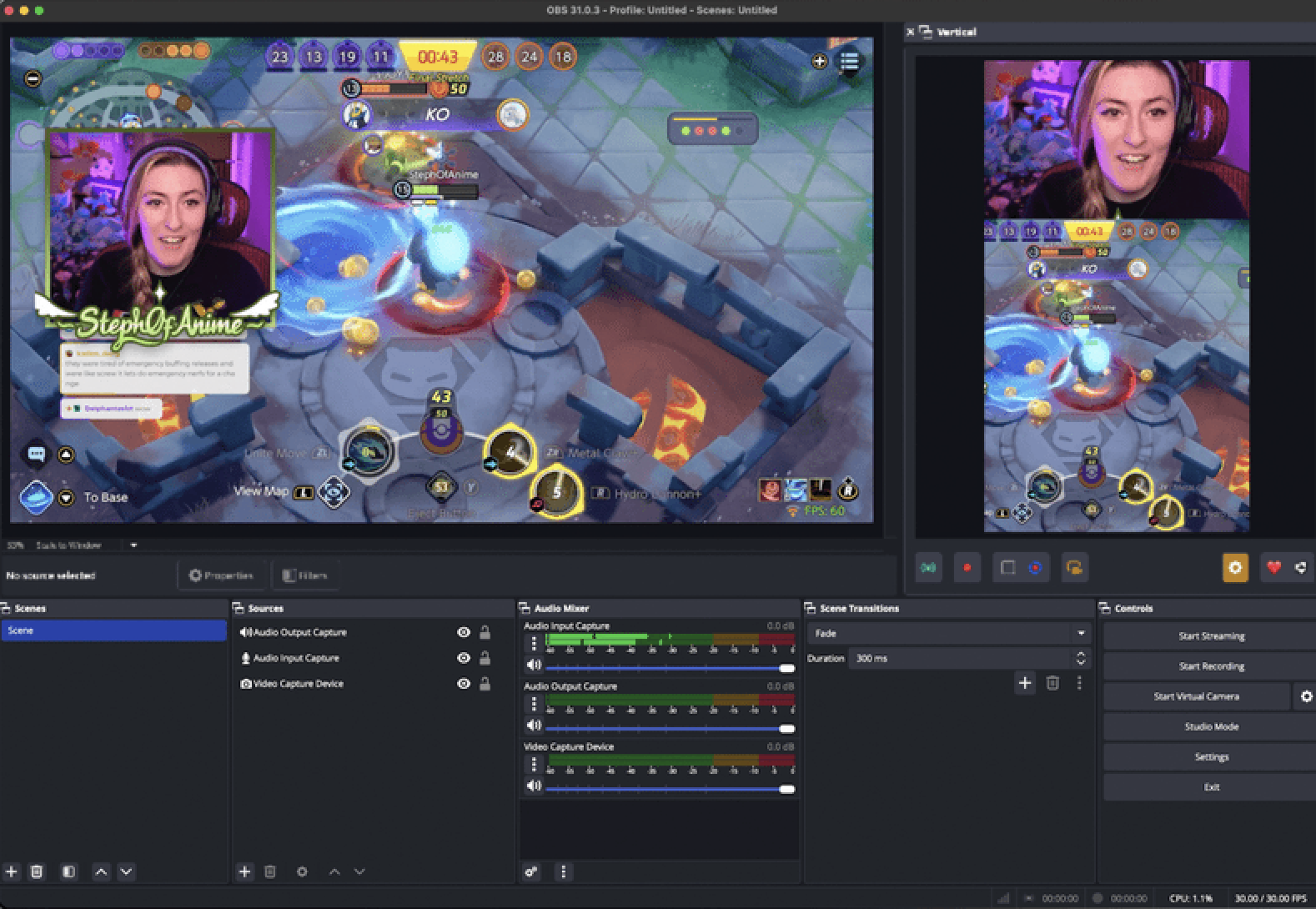
- 5Build two or three vertical scenes and link them. Docks → enable Vertical Scenes and Vertical Sources. Use + in Vertical Sources to pull in your existing camera, game capture and alerts, rearrange them for 9:16, then right-click each vertical scene → Linked Scenes to pair it with its horizontal scene.
- 6Press Start Streaming once and check it on a phone. The normal OBS Start Streaming button sends both formats. Watch the test on the Twitch mobile app, use the orientation icon in Stream Manager's preview, and check stream health at inspector.twitch.tv.
What Dual Format Is and What Viewers See
Twitch announced Dual Format on stage at TwitchCon Rotterdam on May 30, 2026 and opened it to everyone on June 17, together with 2K streaming. The reason is in the same post: Twitch says 70% of new viewers now arrive on mobile, and that vertical layouts “stand out in the mobile feed.”
| Viewer | What they get |
|---|---|
| Desktop and TV | Your usual horizontal stream. Nothing changes. |
| Phone, held upright | Full-screen vertical view by default, with Twitch's chat drawn over it. They can tap to switch to the classic split view and tap chat to show more, less or none. |
| Phone, rotated | Full-screen horizontal view. |
| First Dual Format stream | A one-time notice explaining they can switch views. |
It is still one broadcast on one channel. Chat, subs, gift subs and Cheers work the same in both views, and Twitch says there are no regional restrictions on watching Dual Format (2K viewing does have some).
Requirements at a Glance
| Requirement | What Twitch lists |
|---|---|
| Who can use it | Every Twitch streamer (since June 17, 2026). No Affiliate or Partner status needed. |
| Broadcast software | OBS Studio 32.0.0+, Streamlabs, Streamrun, XSplit, Meld |
| OBS vertical plugin | Aitum Vertical (latest) or the StreamElements SE.Live plugin |
| Technology underneath | Enhanced Broadcasting — always required, even with server-side transcoding |
| Vertical canvas | 1080×1920 (9:16). Your horizontal stream keeps its normal canvas. |
| Operating system | Windows 10/11 or macOS (Windows only without server-side transcoding) |
| Minimum upload | 12.5 Mbps for 1080p Dual Format with server-side transcoding |
| Stream keys | One. There is no separate vertical key and no second RTMP output. |
Source: Twitch Help — Dual Format Streaming on Twitch and Enhanced Broadcasting, checked September 26, 2026. An earlier version of this guide described a second stream key and a second RTMP output — that is not how Dual Format works, and we removed it.
The Creator Dashboard Setting That Decides Your Hardware Floor
Enhanced Broadcasting encodes several quality versions of your stream on your own GPU. For Dual Format and 2K, Twitch adds server-side transcoding for all Partners and select Affiliates: your GPU encodes only the top horizontal and top vertical stream, and Twitch builds the lower qualities (1080p source, 720p, 480p, 360p, 160p) on its servers. Without it, your PC encodes the whole ladder — which is why the GPU recommendation jumps from a GTX 900-series card to an RTX 3070.
To check, open the Creator Dashboard → Settings → Stream and look at Advanced Broadcast Settings. Twitch only guarantees the extra transcoding to Partners and says it can be withdrawn after long inactivity or if you lose Affiliate or Partner status.
| Setup | Minimum GPU | Upload | Video tracks |
|---|---|---|---|
| 1080p + Dual Format, with server-side transcoding | NVIDIA GTX 900 series, GTX 1050/1060/1650 or newer · AMD RX 5500+ · Apple M1+ | 12.5 Mbps | 2 (one horizontal, one vertical) |
| 2K + Dual Format, with server-side transcoding | NVIDIA GTX 1660, 1070, 1080, RTX 20-series or newer · AMD RX 5500+ · Apple M1+ | 14 Mbps | 2 |
| 1080p + Dual Format, without server-side transcoding | NVIDIA RTX 3070 or above · AMD Radeon 6700 or above | 13.5 Mbps | 4–6 |
| 2K + Dual Format, without server-side transcoding | NVIDIA RTX 3080/3090, RTX 4070 or above · AMD Radeon 6800 or above | 22.5 Mbps | 5–7 |
Figures from Twitch's full Dual Format system recommendations. Without server-side transcoding Twitch lists Windows 10/11 only. Mobile viewers never get 2K — the vertical canvas stays 1080×1920 either way.
How to Set Up Dual Format in OBS, Step by Step
This is the path Twitch documents first, because most Dual Format streamers use it. If OBS is new to you, get a normal stream working with our OBS setup guide before adding a second canvas.
- 1Update OBS. Help → Check for Updates, or download from obsproject.com. You need 32.0.0 or newer.
- 2Install Aitum Vertical. Get it from aitum.tv (the source is on GitHub, GPL-2.0), then restart OBS. Even the newest OBS does not include it.
- 3Settings → Stream. Service: Twitch. Click Connect Account and log in. Under Multitrack Video, tick Enable Enhanced Broadcasting. Leave Maximum Streaming Bandwidth and Maximum Video Tracks on Auto for your first test.
- 4Additional Canvas → Aitum Vertical. Same window. If it is not in the dropdown, close and reopen OBS. Then, in the Aitum Vertical dock, click the gear and untick Backtrack runs while streaming/recording unless you use Backtrack replays — Twitch recommends this to reduce load.
- 5Build vertical scenes. Top menu Docks → enable Vertical Scenes and Vertical Sources. Click + in Vertical Sources to add the camera, game capture and alerts you already have, and rearrange them for 9:16. Start with two or three scenes — your main gameplay scene, a Just Chatting scene and a BRB screen cover most streams.
- 6Link the scenes. In Vertical Scenes, right-click a scene → Linked Scenes and pick the horizontal scenes it belongs to. From then on, switch scenes from the normal (horizontal) scene list and the vertical one follows.
- 7Start Streaming. The normal OBS button goes live in both formats — do not press the green Go Live button inside the vertical dock. Check the result three ways: the Twitch app on your phone, the orientation icon next to the gear in Stream Manager's Stream Preview, and inspector.twitch.tv for stream health.
To go back to horizontal only, set Additional Canvas to None (keeps Enhanced Broadcasting) or untick Enable Enhanced Broadcasting entirely.
Streamlabs, StreamElements and Other Software
Twitch lists Streamlabs, Streamrun, XSplit and Meld as supported without a plugin. For a wider comparison of these apps see our streaming software directory.
- Streamlabs Desktop. Per Streamlabs' guide: sign in with Twitch, toggle Dual Output in the editor, set resolution and FPS for each canvas in Settings → Video, adjust sources so nothing is cut off, then in the Go Live window select Twitch, enable both formats and click Confirm and Go Live. Streamlabs lists Windows 10/11.
- StreamElements SE.Live (inside OBS). Needs OBS 32.0.0+. StreamElements says to uninstall Aitum Vertical first — running both risks crashes. Create a 1080×1920 vertical canvas, then Settings → Stream → Twitch → Multitrack Video → Enable Enhanced Broadcasting and pick the vertical canvas under Additional Canvas.
- Twitch mobile app. No Dual Format yet. You can stream vertically from the app, but viewers cannot switch to horizontal and desktop viewers get the vertical feed too. Cloud OBS setups that meet the Enhanced Broadcasting requirements can run it.
Bitrate for Two Outputs: You Set Limits, Not Numbers
With Enhanced Broadcasting you do not split bitrate between the horizontal and vertical stream by hand. Each time you go live, Twitch's automatic configuration picks resolution, framerate, bitrate, codec and encoder settings for every track based on your GPU, drivers and connection. Twitch's June 2026 post puts the new ceilings at up to 9 Mbps for 1440p (HEVC) and 7.5 Mbps for 1080p.
Your part is having the upload and setting upper limits if needed. Run a test at speedtest.net or fast.com and compare it to the table above. If you are close to the minimum, or you also record locally or multistream, set Maximum Streaming Bandwidth and Maximum Video Tracks under Settings → Stream → Multitrack Video. Twitch stresses these are caps, not targets. The manual per-resolution numbers in our bitrate and encoder cheat sheet still apply to local recordings and to platforms other than Twitch; to see how much disk a local recording will take, use the recording size calculator.
Vertical Layout: Safe Areas and Webcam Placement
The vertical canvas is 1080×1920. Twitch draws its own chat and player controls over the mobile view, so anything near the edges can end up covered. Twitch's rule is simple: keep the critical things — camera, the part of the game that matters, alerts — in the centre.
- Do not add a chat overlay. Twitch adds chat to the vertical view automatically; a second chat box just eats space.
- Stack, do not shrink. The common layout is camera on top and a cropped gameplay window below, as in the screenshot above. A full 16:9 game squeezed into a 9:16 frame is unreadable on a phone.
- Rebuild HUD pieces as separate sources. Add the game capture two or three times and crop each copy to one element — minimap, score, health bar — then place them where they are readable. Right-click a source → Transform to fine-tune.
- Make text bigger than feels right. Names, goals and alert text that work on a monitor are tiny on a phone held at arm's length.
- Build one layout per content type. A shooter, a card game and a Just Chatting segment need different crops. Twitch links example streams from its help article — open them on a phone.
Good light and a sharp camera matter more in vertical, where your face can take a third of the screen: see our streaming cameras and lighting picks.
Clips, VODs and Shorts from a Dual Format Stream
This is the underrated part. Every clip from a Dual Format stream exists in both a vertical and a horizontal version, and clips do not expire. A viewer clip of your best moment is already a 9:16 video laid out the way you designed it, not a crop you have to rescue in an editor.
The vertical VOD lasts 7 days
After a week the vertical VOD is gone and only the horizontal one remains, for your usual retention (60 days for Partners, Prime and Turbo; 14 days for Affiliates). If you cut vertical highlights from the VOD, do it the same week. If you also stream in 2K, the 2K VOD likewise drops to 1080p after 7 days.
Download the vertical clip, add captions and your channel name, and post it to TikTok, Shorts and Reels. The full editing workflow is in how to make and edit Twitch clips, the one-paste download route in the Twitch clip downloader guide, and what actually travels on short-form platforms in growing with TikTok and YouTube Shorts.
Is Dual Format Worth It?
If a large share of your audience watches on phones, probably yes: at launch Twitch said it would feature Dual Format streams on the mobile app's front pages, and it says vertical layouts drive more clicks from the mobile feed. The costs are real, though — more GPU work, a second set of scenes to maintain, and a layout you have to check on a phone every time you add an overlay.
Treat it as an experiment with a measurement. Note your average viewers for a few weeks before switching, then compare the same number after — your channel page on Streams Charts shows the history without digging through the dashboard. The broader growth levers are in how to get more viewers on Twitch, and if you are weighing where a mobile-heavy audience should find you, see YouTube vs Twitch. Dual Format also works alongside a restream service — our multistreaming guide covers that setup.
Troubleshooting
| Problem | What to check |
|---|---|
| The vertical stream never shows up | Enhanced Broadcasting ticked, Additional Canvas set to Aitum Vertical, plugin installed and enabled, OBS connected to your Twitch account (Connect Account, not a pasted key). |
| Vertical viewers see the wrong layout | Open the Aitum Vertical dock and check which vertical scene is active, then link it to the horizontal scene you switch from. |
| High GPU usage or dropped frames | Lower Maximum Streaming Bandwidth or set Maximum Video Tracks to 5 or 4 under Settings → Stream → Multitrack Video, stop local recording, close browser sources you do not need. |
| Vertical stream has no audio | Add the same mic and desktop audio sources to the vertical scenes, and check virtual audio cables are routed to both outputs. |
| OBS says failed to connect | Check your upload meets the minimum, re-login to Twitch in OBS, restart OBS, reinstall Aitum Vertical if it persists. |
Still stuck? Twitch runs a Dual Format Discord for streamers, linked from the top of its help article.
Frequently Asked Questions
What is Twitch Dual Format?
Dual Format sends two versions of one broadcast to Twitch at the same time: your normal horizontal 16:9 stream for desktop and TV, and a full-screen vertical 9:16 stream for people watching on a phone held upright. It is one stream on one channel, not two broadcasts, and it runs on Twitch's Enhanced Broadcasting technology.
How do I stream vertical on Twitch?
On PC: update OBS to 32.0.0 or newer, install the free Aitum Vertical plugin, go to Settings → Stream, connect your Twitch account, tick Enable Enhanced Broadcasting under Multitrack Video and set Additional Canvas to Aitum Vertical. Build a few vertical scenes, link them to your horizontal ones, and press Start Streaming. From the Twitch mobile app you can only stream vertical-only, which desktop viewers also see as vertical.
Who can use Dual Format streaming? Do I need Affiliate?
Every Twitch streamer can use it since June 17, 2026. What differs by status is server-side transcoding: all Partners and select Affiliates get it, which lowers the hardware and upload requirements. Check Creator Dashboard → Settings → Stream → Advanced Broadcast Settings to see whether your channel has it. 2K (1440p) streaming, which can run alongside Dual Format, is limited to Affiliates and Partners.
Do I need a second stream key for the vertical feed?
No. Enhanced Broadcasting sends both formats through your normal connection when you press Start Streaming in OBS. There is no vertical ingest URL, no second RTMP output and no separate Go Live button in the vertical canvas. Guides that tell you to add a second key describe a setup that does not apply to Dual Format.
Does Streamlabs support vertical streaming on Twitch?
Yes, without a plugin. Streamlabs' own guide has you sign in with Twitch, toggle Dual Output in the editor, set resolution and FPS per canvas in Settings → Video, then enable both formats for the Twitch destination in the Go Live window. Twitch also lists Streamrun, XSplit and Meld as supported, and StreamElements' SE.Live plugin as an alternative to Aitum inside OBS.
What PC and internet speed do I need for Dual Format?
With server-side transcoding (all Partners, select Affiliates) Twitch's floor is a GTX 900-series, AMD RX 5500 or Apple M1 GPU and 12.5 Mbps of upload for 1080p. Without it, your PC has to encode the whole quality ladder itself, and Twitch recommends an RTX 3070 or Radeon 6700 and 13.5 Mbps for 1080p, or 22.5 Mbps if you add 2K.
Can I use Dual Format from the Twitch mobile app?
Not yet. Streaming from the Twitch app can be vertical, but viewers cannot switch to horizontal and desktop viewers see the vertical feed too. Twitch says mobile streamers using cloud OBS or other advanced setups that meet the Enhanced Broadcasting requirements can run Dual Format.
Will my clips and VODs be vertical?
Both. Clips from a Dual Format stream exist in vertical and horizontal versions and do not expire. The vertical VOD expires 7 days after the stream; after that only the horizontal VOD remains, for your normal retention period (60 days for Partners, Prime and Turbo, 14 days for Affiliates).
Can I multistream while using Dual Format?
Yes. Twitch says you can keep sending to a restreaming service for other platforms while streaming to Twitch directly with Enhanced Broadcasting. Expect more encoder load, and cap Maximum Video Tracks if the GPU struggles.