How to Go Live on Discord: Stream and Screen Share Guide
By Sofia Vance·
Going live on Discord is the fastest way to share your screen, game, or webcam with friends and your community — no stream key, no broadcasting software, and you can be live in about 30 seconds.
It is important to know what Discord's Go Live actually is: it streams your screen to people inside a voice channel, with a cap of 50 viewers. It is built for community sharing — co-watching, gaming together, screen-sharing a project — not for broadcasting to a public audience the way Twitch or YouTube do.
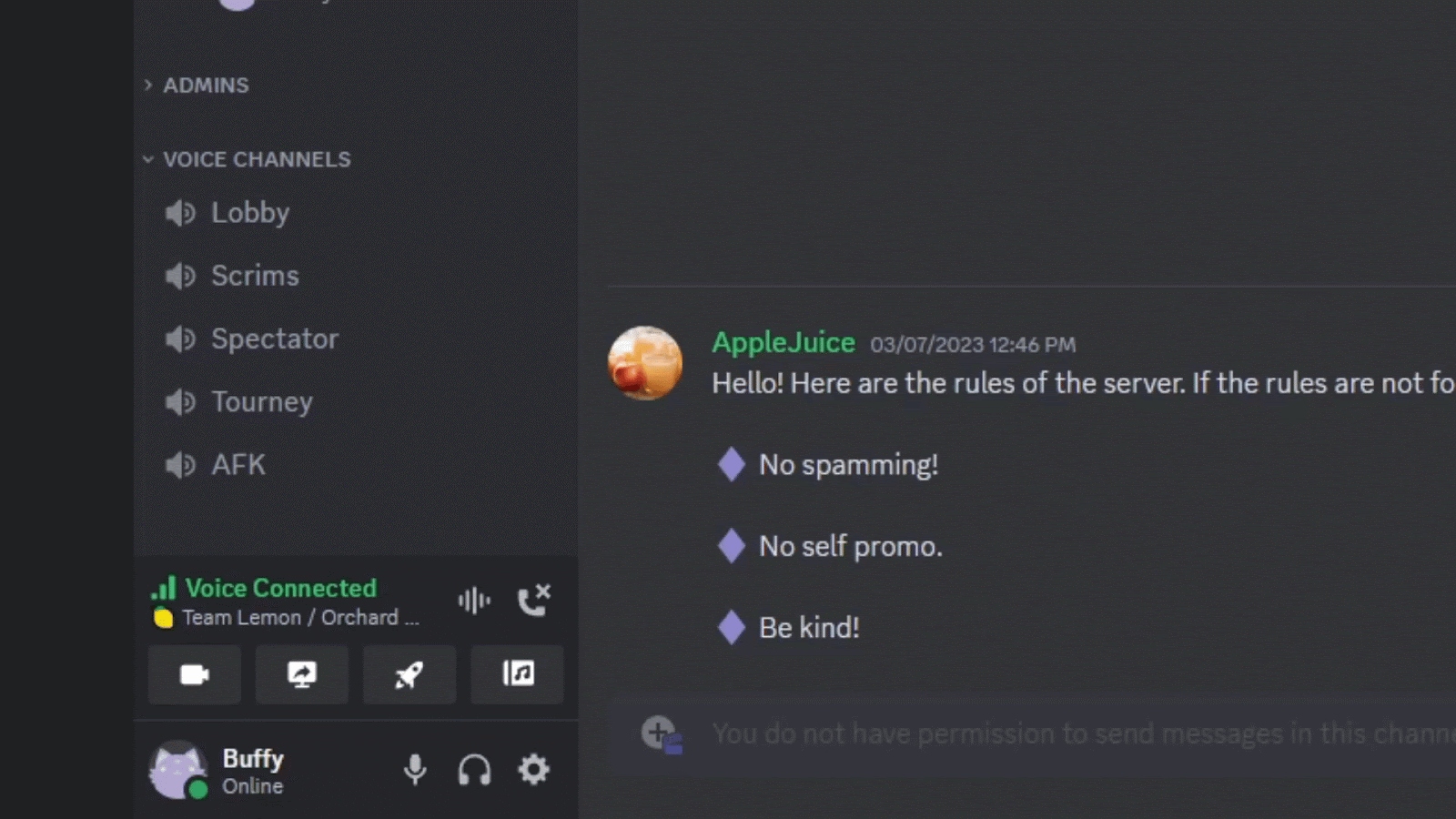
The Voice Connected bar (bottom left) is where you find the Screen, Video, and Activity buttons to start a Go Live stream. Image: Discord Support
Go Live vs. Screen Share vs. Video: What's the Difference?
Go Live — Share a specific application or your whole screen inside a server's voice channel. This is what most people mean by 'going live on Discord.'
Screen Share — The same screen-sharing function used in a direct message or group DM rather than a server channel.
Video — Turns on your webcam as a camera feed. You can run your camera and a screen share at the same time.
All three are free. None requires a stream key or external software.
What You Need to Go Live on Discord
- The Discord desktop app — Go Live works best in the desktop app. The browser version works but does not let you adjust stream quality.
- A voice channel — You go live from inside a server's voice channel or a DM. Joining a different voice channel ends your current stream.
- Discord Nitro (optional) — Free accounts stream up to 720p/30fps. Nitro unlocks higher resolutions and frame rates up to 1080p/60fps or source/4K quality.
- A good mic (recommended) — Since people hear you while you share, a clear microphone makes the experience far better than a laptop's built-in mic.
How to Go Live on Discord (Desktop)
The fastest path — takes about 30 seconds from joining a voice channel to streaming.
Open Discord and go to the server you want to stream in.
Join a voice channel by clicking its name.
In the Voice Connected bar at the bottom left, click the Screen (monitor) icon to start Go Live. If Discord has already detected your game, you may see a Stream [game] button instead.
In the pop-up, choose what to share: Applications (recommended — picks a single app or game and captures its audio automatically) or Screens (broadcasts your entire monitor).
Choose your stream quality — resolution and frame rate. The options depend on whether you have Nitro.
Click Go Live. Your stream starts immediately and appears in the voice channel for others to join.
To stop, hover over the stream preview and click the X, or click the Screen button again and choose Stop Streaming.
How to Go Live on Discord Mobile (iOS & Android)
Screen sharing from the mobile app works on both iOS and Android.
Open the Discord app and tap into your server.
Tap a voice channel to join it.
Swipe up or tap the call controls to reveal the streaming options.
Tap Share Your Screen to screen share, or the Video (camera) icon to share your camera.
Confirm the screen-recording permission prompt to start broadcasting to the channel.
Tap the stream controls again and choose Stop Sharing to end it.
Stream Quality and Discord Nitro Tiers
Discord caps quality based on your subscription tier:
| Account | Resolution | Frame Rate | Bitrate |
|---|---|---|---|
FreeFree | 720p | 30 fps | Standard |
Nitro Basic / ClassicNitro | 1080p | 60 fps | Higher |
NitroNitro | Source / 4K | 60 fps | Highest |
- You can change quality mid-stream from the Screen button or by hovering over your stream preview and clicking the gear icon.
- Browser streaming cannot adjust quality — use the desktop app for control.
- Go Live is limited to 50 concurrent viewers plus you, the broadcaster. Stage channels can host larger audiences.
How to Watch a Discord Stream
Using OBS With Discord (Advanced)
Discord has no native stream key or RTMP integration, so you cannot stream to Discord from OBS the way you would with Twitch. The workaround is OBS Virtual Camera.
Set up your scene in OBS with all your sources — camera, game capture, overlays, and transitions.
In OBS, click Start Virtual Camera (bottom-right panel).
In Discord, turn on Video and choose OBS Virtual Camera as your camera source.
Your OBS scene now appears in the Discord video grid as a camera feed.
Trade-off: your feed shows up as a camera (not a Go Live screen stream), and quality is capped at 1080p/30fps on free accounts or 1080p/60fps with Nitro. This is best when you want overlays and a polished look, or when you stream to Twitch and want friends to watch a copy in Discord at the same time.
Best Practices for Streaming on Discord
Sharing one app rather than your whole screen protects your privacy, hides notifications, and captures game audio automatically.
Ethernet gives stable quality, especially at 1080p/60fps. Wi-Fi introduces jitter that causes artifacting during fast motion.
A smooth 720p/30fps stream is far better than a laggy 1080p one. Match your quality to your upload speed.
Background noise — fans, keyboards, pets — is distracting when you are the broadcaster. Discord's built-in noise suppression helps significantly.
Drop a message in the server's text channel so your community knows to join the voice channel. Discord does not send push notifications for Go Live.
Start a private Go Live session first to confirm audio, video, and quality settings are working before going live to your community.
Announcing a stream night in your server? Paste a Discord timestamp like <t:UNIX:F> (<t:UNIX:R>) so everyone sees the start in their own time zone, and use the Discord formatting cheat sheet for headers, spoilers and pinned-message layout.
Common Problems and How to Fix Them
No sound on stream
Share a specific application rather than your entire screen. Discord captures application audio automatically when you share a single app.
Black screen when sharing a streaming service
DRM-protected content (Netflix, Disney+) is blocked from screen capture. Try sharing a single browser tab rather than the whole screen.
Cannot change quality
You are likely in the browser version. Switch to the Discord desktop app for quality controls.
Stream lag or artifacting
Lower the resolution and frame rate, use a wired connection, and close heavy background apps like browsers or game launchers.
Stream ended unexpectedly
Joining a different voice channel disconnects your Go Live session. Stay in the same voice channel for the duration of your stream.
Frequently Asked Questions
Is going live on Discord free?
Yes. Go Live, screen share, and video are all free. Free accounts stream up to 720p at 30fps. Discord Nitro unlocks higher resolutions and frame rates up to 1080p/60fps or source quality.
Do you need Nitro to stream on Discord?
No. You can stream at 720p/30fps for free. Nitro is only needed for 1080p/60fps or source/4K quality.
How many people can watch a Discord stream?
Go Live supports up to 50 concurrent viewers plus the broadcaster. Stage channels can host larger audiences.
Why is there no sound on my Discord stream?
You are probably sharing your entire screen. Share a specific application instead, which lets Discord capture that app's audio automatically.
Can you go live on Discord from your phone?
Yes. Join a voice channel in the mobile app, then tap Share Your Screen or the camera icon to broadcast to the channel.
Can you stream to Discord with OBS?
Not directly — Discord has no stream key. Use OBS Virtual Camera and select it as your camera in Discord, though it appears as a video feed rather than a Go Live stream.
What is the difference between Go Live and screen share on Discord?
Go Live shares your screen inside a server's voice channel for up to 50 viewers. Screen Share does the same thing inside a direct message or group DM. Both are functionally the same technology.
Related Guides
How to Go Live on X (Twitter)
Mobile steps, OBS + RTMP, and X Media Studio Producer.
How to Go Live on LinkedIn
Eligibility, partner tools, and OBS RTMP setup.
How to Go Live on TikTok
PC, OBS, LIVE Studio, and Web browser methods.
Complete OBS Setup Guide
Scenes, sources, settings, and stream optimization.
Final Thoughts
Discord's Go Live is the easiest screen sharing there is: join a voice channel, click the Screen icon, pick an application, and go live to your community in seconds. Share a single app rather than your whole screen to keep audio working and your notifications private, drop to 720p if your connection wobbles, and add Nitro only if you genuinely need 1080p/60fps or 4K. For everyday gaming, co-watching, and showing friends what you're working on, no other platform makes going live this fast.